
How to Extract High-Quality Audio from a Video File (Free & Easy)
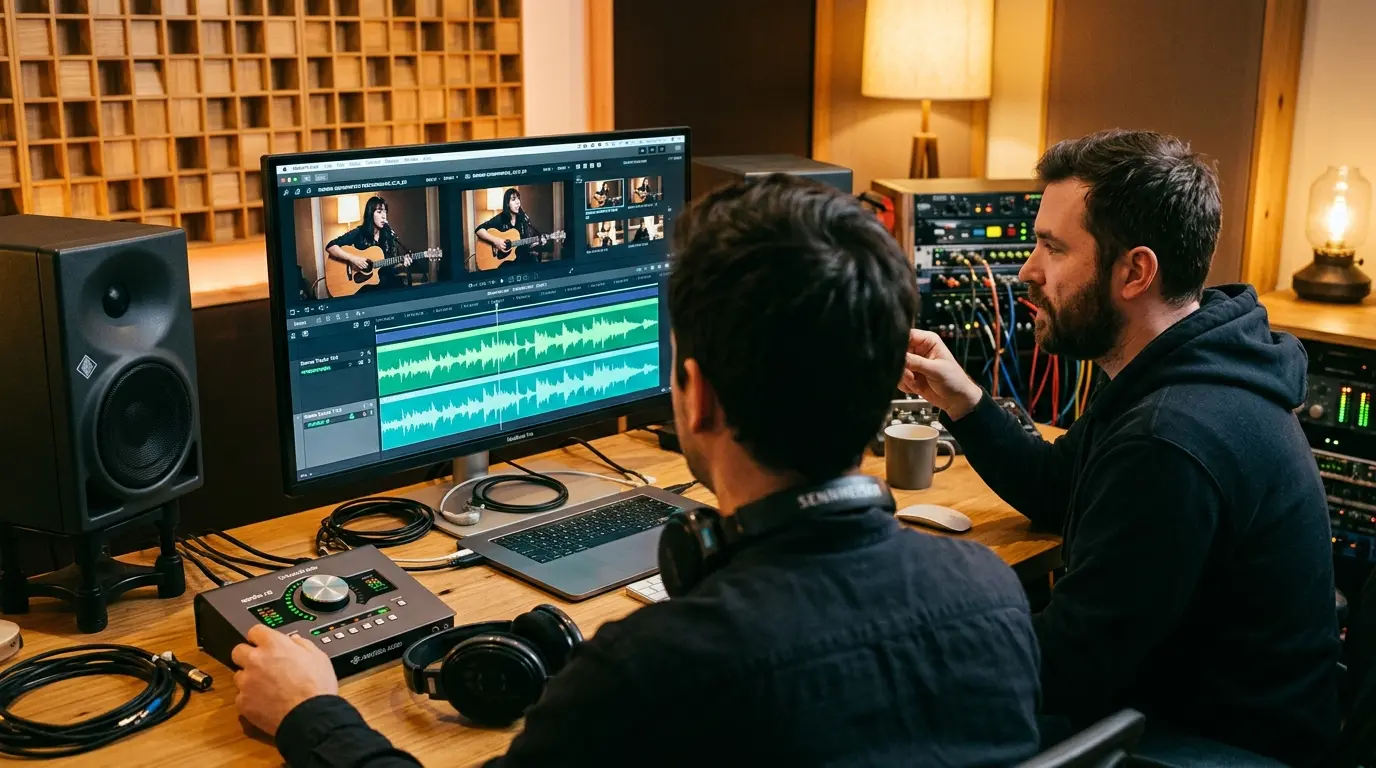
You have a video file with an incredible vocal performance, a perfect drum break, or a masterclass you want to listen to like a podcast. But keeping the massive MP4 file on your phone or hard drive is completely impractical. You just want the sound.
Most people try to solve this by finding a sketchy converter website covered in pop-up ads, uploading their file, and downloading a heavily compressed, muddy-sounding MP3. If you are a musician pulling a backing track or a producer grabbing a sample, that loss in audio fidelity is unacceptable.
Learning how to extract high-quality audio from a video is a fundamental technical skill. It is not complicated, but doing it without destroying the sound quality requires you to understand a few basic rules.
Here is exactly how to rip audio from video files cleanly and easily.
What You'll Need
Before you start clicking around, you only need two things:
- The original video file (preferably the highest resolution and largest bitrate you can find).
- A secure audio extraction tool—such as the free MP4 to MP3 converter built into Vocal Archive, which processes files client-side directly in your browser using the Web Audio API without uploading your personal files to external servers.
Step 1: Check Your Original Source File (Containers vs. Codecs)
The golden rule of audio extraction is simple: you cannot extract better audio than what already exists in the video. If the video was recorded on a cheap smartphone from across a windy room, converting it to a massive, uncompressed audio file will not magically make it sound like a studio recording.
This misconception stems from confusing multimedia containers with audio codecs:
- Containers (.mp4, .mov, .mkv, .webm): These are digital boxes that bundle video streams, audio streams, and subtitles together.
- Audio Codecs (AAC, Opus, PCM): The actual audio stream inside an MP4 is almost universally encoded as AAC (Advanced Audio Coding, typically 128 kbps to 256 kbps at 44.1 kHz or 48 kHz). In WebM containers, the audio is typically Opus or Vorbis. In high-end camera footage (.mov), it may be uncompressed LPCM (Linear Pulse Code Modulation).
Always hunt down the highest quality version of the video before you extract. If you are downloading a video from a platform like YouTube or Starmaker (using a tool like our Starmaker Downloader), choose the highest resolution (1080p or 4K) available. Video platforms almost universally bundle higher-bitrate audio streams (such as 160 kbps Opus or 256 kbps AAC) with their high-definition video tiers compared to low-resolution 360p streams.
Step 2: Choose the Best Format: Demuxing vs. Transcoding
When separating audio from video, your workflow dictates which path you should take:
- Direct Stream Demuxing (Stream Copying): If you want the purest, mathematically bit-identical audio with zero loss, you can demux the container. Rather than re-encoding the audio, the extraction tool simply unzips the container and saves the native stream (for example, saving the internal AAC audio as a
.m4afile). Because zero re-encoding occurs, there is zero generational quality loss. - MP3 (Compressed & Universally Compatible): For everyday listening on phones, car audio, or portable players, MP3 remains the global standard. Converting the decoded audio stream into a clean MP3 shrinks file size while preserving musicality. If using our browser-based MP4 to MP3 Converter, the Web Audio engine decodes the stream locally and packages a reliable, high-compatibility MP3 file in seconds.
- WAV (Uncompressed PCM for DAW Work): If you are a producer sampling a vocal stem to mix into a track, or analyzing frequency content with our Acoustic Analyser, decode the audio to an uncompressed WAV file. While converting an AAC track to WAV cannot magically restore data already discarded by lossy compression, it prevents generation loss—ensuring subsequent slicing, EQing, or mixing in your DAW does not compound compression artifacts.
Step 3: Run the Extraction
Once you have your video file and understand your target format, extracting the audio is straightforward:
- Open our MP4 to MP3 Converter.
- Click Choose mp4 file and select your video.
- Click Convert. The engine processes the audio locally via a client-side Web Worker, decoding the audio stream without uploading your data.
- Download your new MP3 audio file.
(Pro tip for studio engineers: If you need uncompressed 24-bit WAV or lossless AAC stream copies, you can import the MP4 directly into desktop software like Audacity, or run a single command in FFmpeg: ffmpeg -i video.mp4 -vn -c:a copy audio.m4a).
Try This Now: Spotting Generation Loss
Test the difference: Find a music video on your computer. Extract the audio twice using an audio tool: first as a low-bitrate MP3, and second as a full-bandwidth WAV or 320 kbps MP3. Put on a good pair of studio headphones and focus on the high-frequency transients—specifically the cymbals, acoustic guitar fret noise, and vocal sibilance ("s" and "t" sounds). In heavily compressed or multiply-transcoded files, you will clearly hear the "swishy," watery phase smearing characteristic of psychoacoustic masking breakdown.
Common Mistakes When Extracting Audio
The single most frequent mistake people make is cascading lossy compression (generation loss).
Every lossy audio codec (MP3, AAC, Ogg Vorbis) uses psychoacoustic models to discard acoustic information that the average human auditory system cannot easily perceive. When you convert an MP4 that already contains a 128 kbps AAC track into a low-bitrate MP3, the second encoder attempts to psychoacoustically analyze an already degraded audio spectrum.
It is like taking a photocopy of a photocopy: edges blur, high frequencies turn harsh and metallic, and dynamic punch vanishes.
The Upsampling Fallacy: Another widespread trap is attempting to "upsample" a compressed track into a 96 kHz / 24-bit file. Transcoding does not synthesize missing frequencies above the codec's low-pass cutoff (often 16 kHz to 18 kHz in 128 kbps streams). It simply stores the truncated spectrum in a container ten times larger. Match your project's native sample rate (44.1 kHz for standard audio, 48 kHz for broadcast video) and keep your bit depth proportional to your workflow.
Frequently Asked Questions About Video Extraction
Does extracting audio ruin the original video?
No. Audio extraction is completely non-destructive. The software simply reads the audio track embedded within the container and creates an independent audio copy. Your source video remains unaltered on your drive.
Why does my extracted MP3 sound too quiet?
Converters decode audio at the exact recorded gain levels of the video file. Many video recordings are mastered with substantial dynamic headroom or mixed at low broadcast targets. To boost perceptual loudness without clipping peaks, import your extracted file into an audio editor and apply peak normalization or subtle compression.
Can I extract just the vocals from a video?
Standard video converters extract the composite audio mix (dialogue, instrumentation, and background Foley combined). If you need an isolated vocal track, first export the video's audio as a clean uncompressed WAV, and then pass that WAV file through an AI stem separation utility to cleanly isolate the vocal performance.
Next Steps: Analyze Your Extracted Audio
Once you have your clean extracted audio, you can put it to musical use. If you ripped a vocal take to study phrasing, pitch accuracy, or vibrato, feed the audio into our Vocal Pitch Monitor or analyze its harmonic frequency peaks with our Acoustic Analyser. If you are transcribing a performance, lock into its rhythmic grid with our BPM Tap Tempo.
Related Topics to Explore:
- Difference Between Pitch, Tone, and Timbre
- How to Find the Key of a Song Online
- Ear Training for Beginners: What It Is and How to Start
References
- Pohlmann, K. C. (2010). Principles of Digital Audio (6th ed.). McGraw-Hill.
- Bosi, M., & Goldberg, R. E. (2003). Introduction to Digital Audio Coding and Standards. Springer.
- Katz, B. (2014). Mastering Audio: The Art and the Science (3rd ed.). Focal Press.
- ISO/IEC 14496-3:2019. Information technology — Coding of audio-visual objects — Part 3: Audio (AAC). International Organization for Standardization.